14 — 灯光
介绍
就像我们在上一节课看到的,加灯光和加 mesh 一样简单。你用合适的类实例化一个灯光,然后把它添加到场景里。
灯光有好几种类型,我们已经认识了 AmbientLight 和 PointLight。
这节课,我们会详细了解所有不同的类以及如何使用它们。
设置
starter 里已经布置好了一个场景(有球体、立方体、圆环,还有一个作为地面的平面),但如果你想练习的话,也可以自己尝试。
因为我们要使用灯光,我们必须使用会响应灯光的材质。我们本可以使用 MeshLambertMaterial、MeshPhongMaterial 或 MeshToonMaterial,但我们改用 MeshStandardMaterial,因为正如我们在上一节课看到的,它是最真实的材质。我们还将材质的 roughness 降到了 0.4,以便看到灯光的反射。
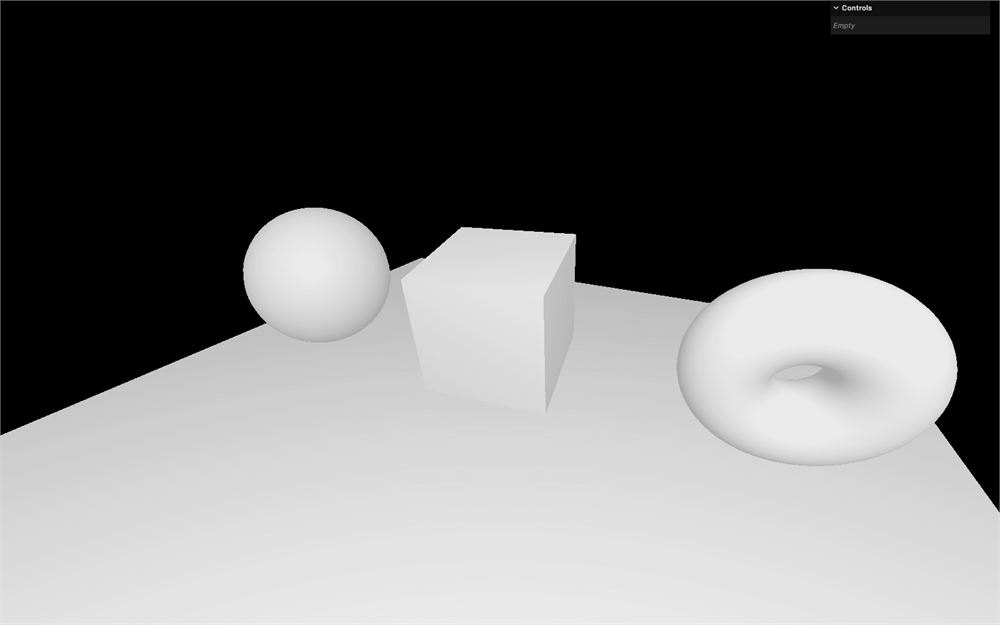
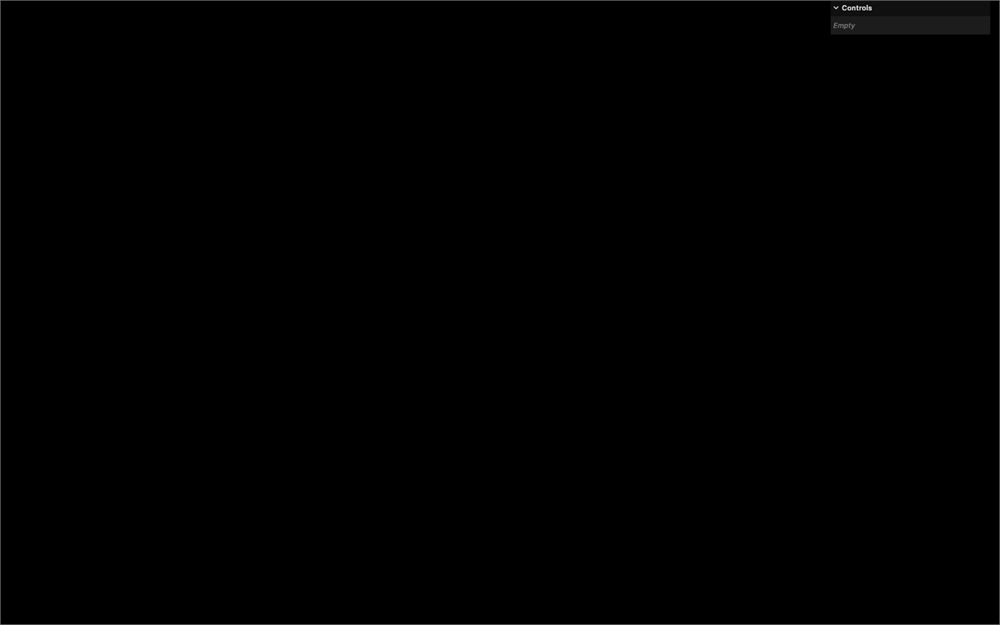
当 starter 正常工作时,移除 AmbientLight 和 PointLight,从零开始。你应该会得到一个什么都看不到的黑色渲染:
我们现在要认识 Three.js 里可用的主要灯光,从我们刚刚移除的那个开始。
AmbientLight
AmbientLight 会对场景中的所有几何体应用全方位照明。第一个参数是 color,第二个参数是 intensity。和材质一样,你可以在实例化 AmbientLight 类时直接设置这些属性:
// Ambient light
const ambientLight = new THREE.AmbientLight(0xffffff, 1)
scene.add(ambientLight)
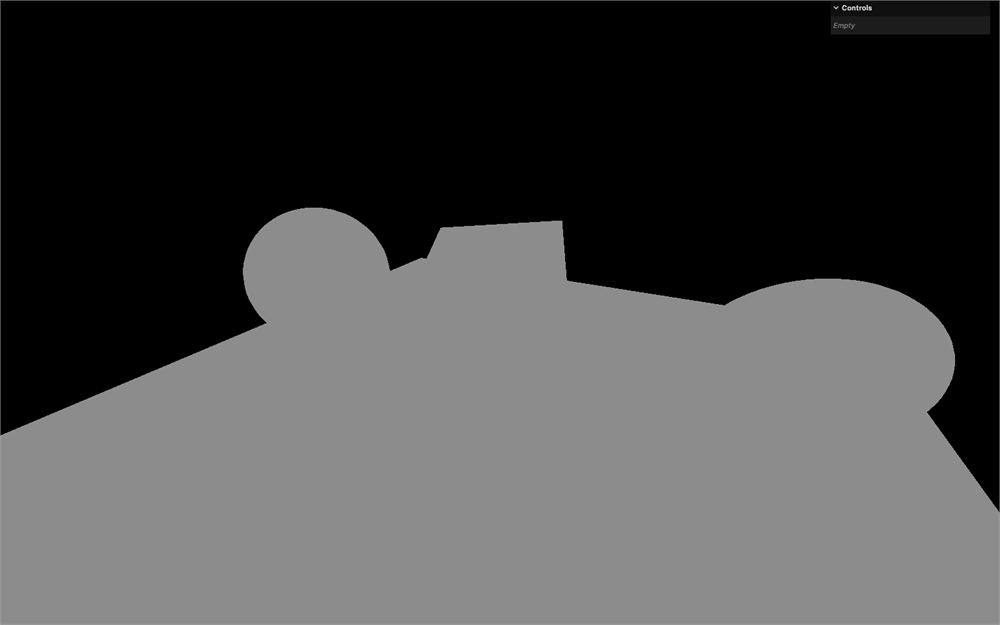
你也可以在之后通过属性来修改这些参数(这里的情况是 color 和 intensity):
// Ambient light
const ambientLight = new THREE.AmbientLight()
ambientLight.color = new THREE.Color(0xffffff)
ambientLight.intensity = 1
scene.add(ambientLight)
我们得到同样的结果。
注意,当我们更新 color 属性时,必须实例化一个 Color。
而且就像我们对材质做的那样,你可以把这些属性添加到调试 UI 里。本课剩余部分我们不会这么做,但如果你想方便测试,欢迎添加调整项:
gui.add(ambientLight, 'intensity').min(0).max(3).step(0.001)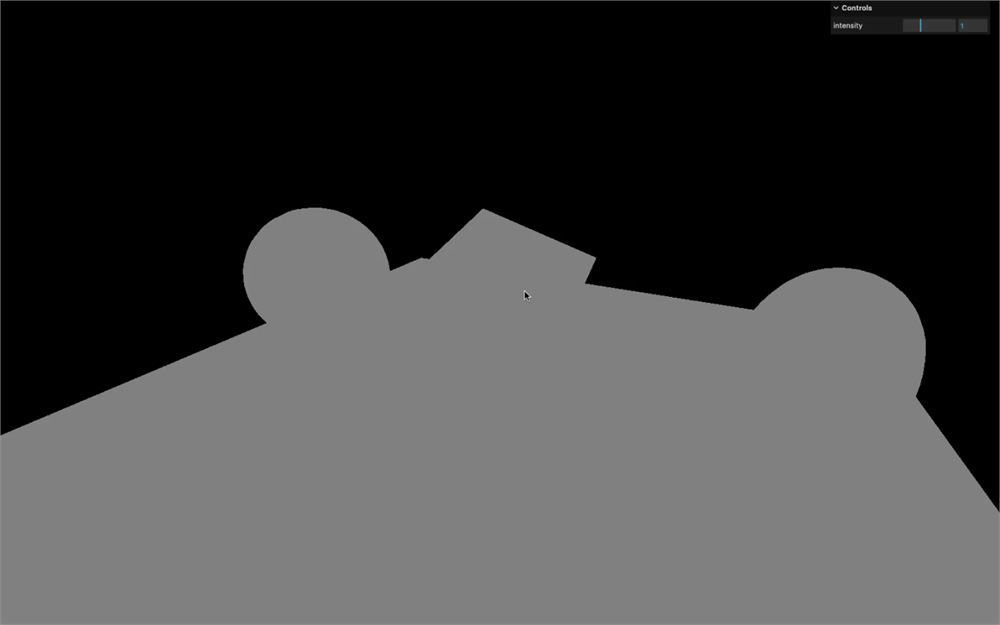
如果你只有 AmbientLight,效果会和 MeshBasicMaterial 一样,因为几何体的所有面都会被均匀照亮。
在现实生活中,当你照亮一个物体时,物体背对灯光的那些面不会完全是黑的,因为光线会在墙壁和其他物体上反弹。出于性能考虑,Three.js 不支持光线反弹,但你可以使用一个暗淡的 AmbientLight 来模拟这种光线反弹。
DirectionalLight
DirectionalLight 会有一种类似太阳的效果,仿佛太阳光以平行方式传播。第一个参数是 color,第二个参数是 intensity:
// Directional light
const directionalLight = new THREE.DirectionalLight(0x00fffc, 0.9)
scene.add(directionalLight)
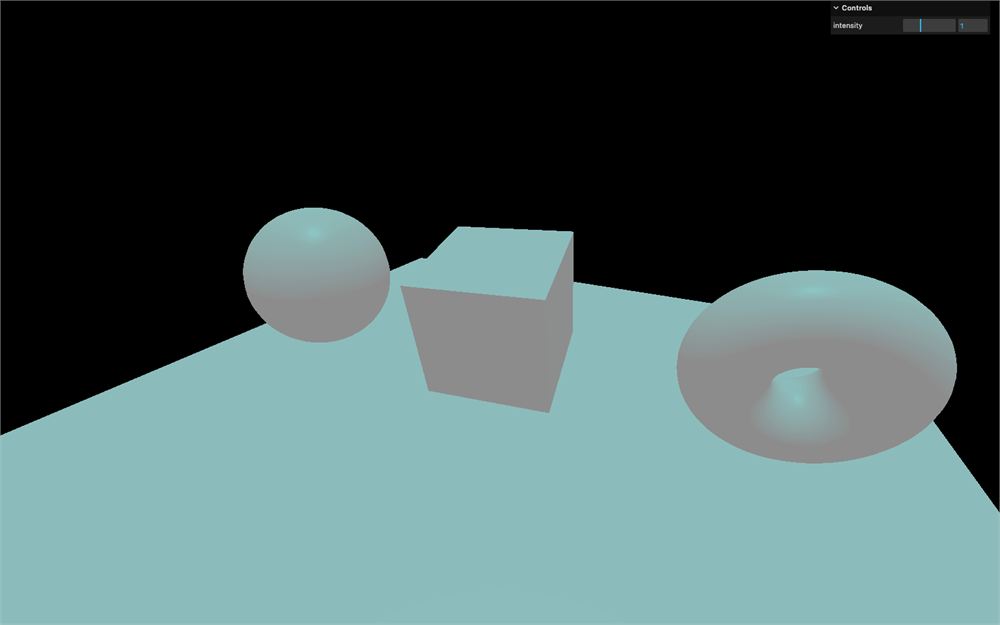
默认情况下,灯光看起来像是从上方照下来的。要改变这一点,你必须像对待普通 Three.js 对象那样,用 position 属性移动整个灯光。
directionalLight.position.set(1, 0.25, 0)
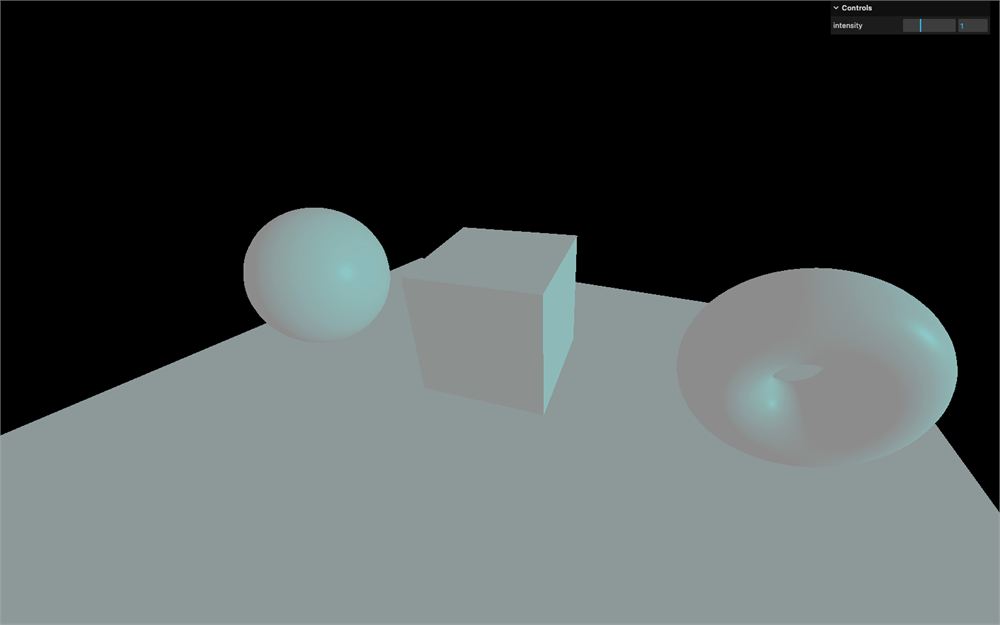
灯光离得远或近现在都不重要。光线来自无限远的地方,并朝着无限远的地方平行传播。
HemisphereLight
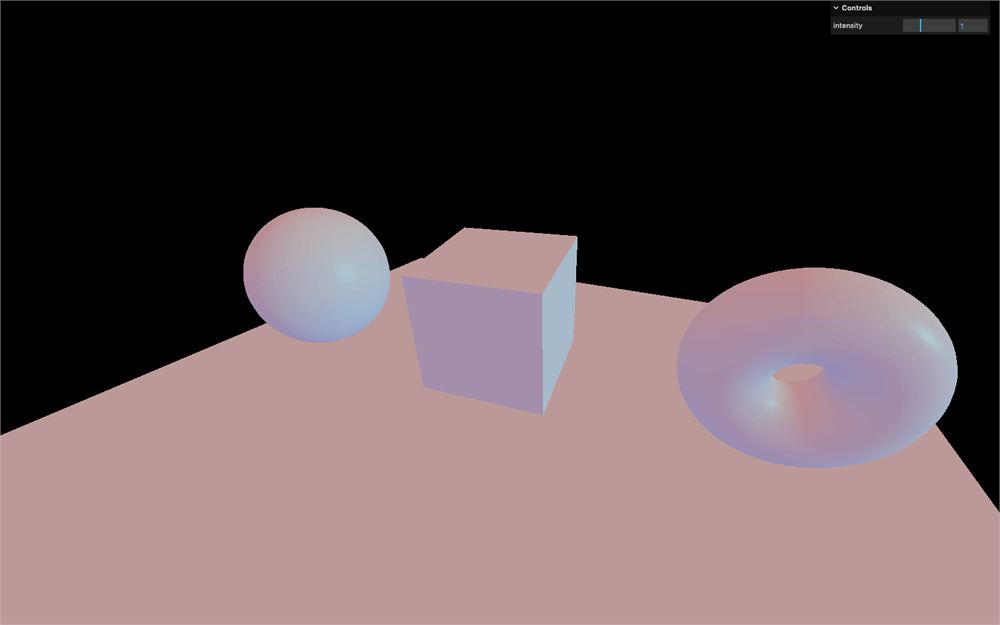
HemisphereLight 和 AmbientLight 类似,但从天空来的颜色和从地面来的颜色不同。朝上的面会被一种颜色照亮,而另一种颜色会照亮朝下的面。
第一个参数是对应天空颜色的 color,第二个参数是 groundColor,第三个参数是 intensity:
// Hemisphere light
const hemisphereLight = new THREE.HemisphereLight(0xff0000, 0x0000ff, 0.9)
scene.add(hemisphereLight)
PointLight
PointLight 几乎就像一个打火机。光源无限小,光线均匀地向各个方向传播。第一个参数是 color,第二个参数是 intensity:
// Point light
const pointLight = new THREE.PointLight(0xff9000, 1.5)
scene.add(pointLight)
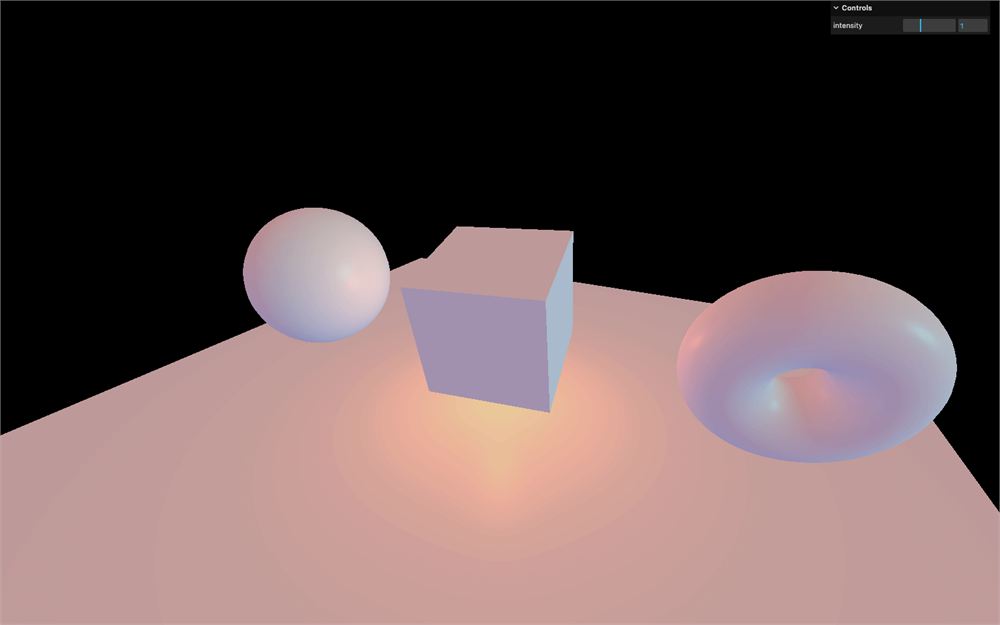
我们可以像移动任何物体那样移动它:
pointLight.position.set(1, - 0.5, 1)
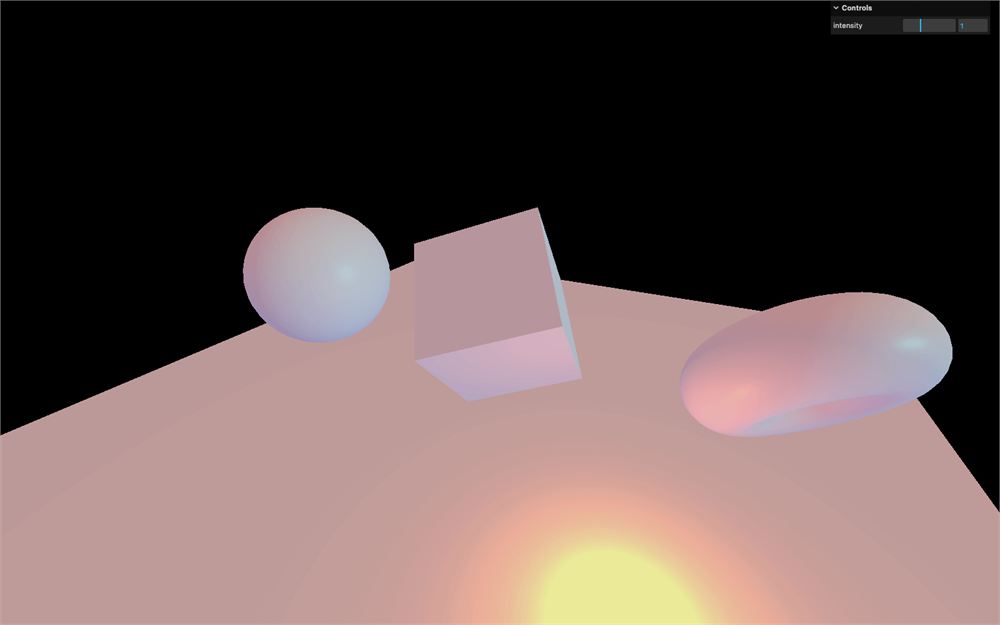
为了得到真实的效果,我们通常只调整灯光的 intensity 参数,但其实我们通过另外两个参数能获得更多控制。
第一个是 distance。它的默认值是 0,意思是距离实际上是无限的。
试试把它设为 0.5:
const pointLight = new THREE.PointLight(0xff9000, 1.5, 0.5)
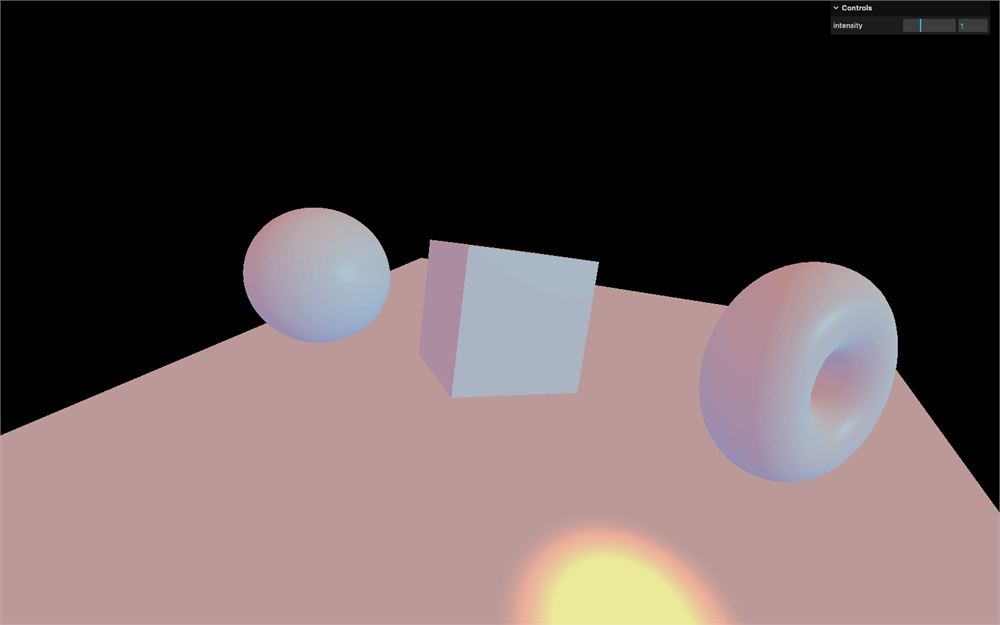
灯光看起来挺相似的,但强度在接近 0.5 这个距离阈值时会急剧下降。
让我们把 0 放回去,表示无限距离:
const pointLight = new THREE.PointLight(0xff9000, 1.5, 0)下一个参数是 decay。
decay 值越低,光线衰减得越快。
默认值是 2。试试把它设为 0.5:
const pointLight = new THREE.PointLight(0xff9000, 1.5, 0, 0.5)
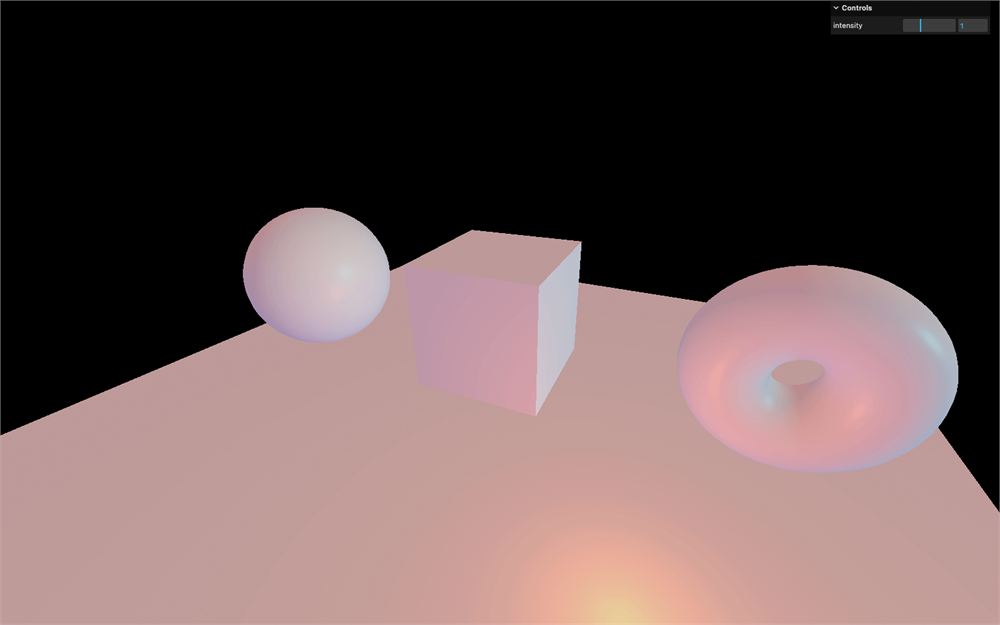
光线变暗得更快了。
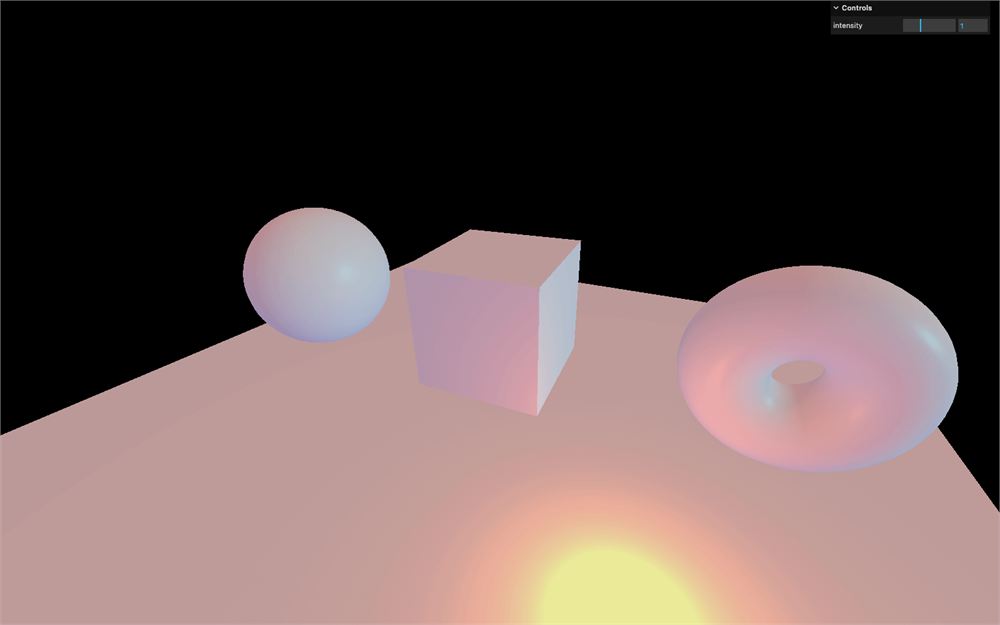
但为了真实且基于物理的结果,你最好保持默认值。让我们把它放回 2:
const pointLight = new THREE.PointLight(0xff9000, 1.5, 0, 2)
RectAreaLight
RectAreaLight 的工作方式类似于你在摄影棚里能看到的巨大矩形灯。它是定向光(directional light)和漫射光的混合体。第一个参数是 color,第二个参数是 intensity,第三个参数是矩形的 width,第四个参数是它的 height:
// React area light
const rectAreaLight = new THREE.RectAreaLight(0x4e00ff, 6, 1, 1)
scene.add(rectAreaLight)
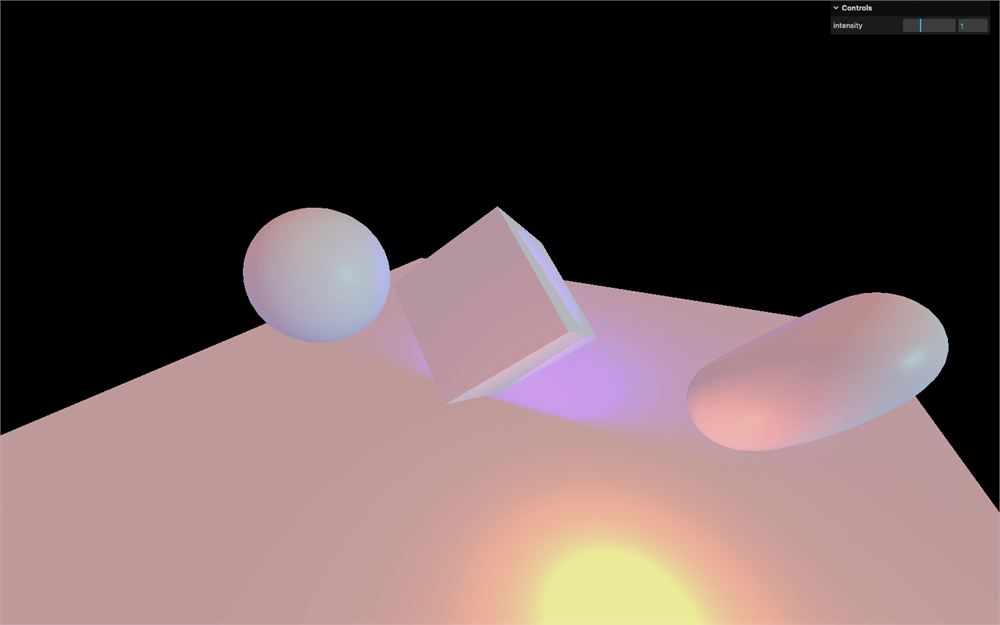
RectAreaLight 只支持 MeshStandardMaterial 和 MeshPhysicalMaterial。
然后你可以移动灯光并旋转它。为了让旋转更简单,你可以使用我们在之前的课程中见过的 lookAt(...) 方法:
rectAreaLight.position.set(- 1.5, 0, 1.5)
rectAreaLight.lookAt(new THREE.Vector3())
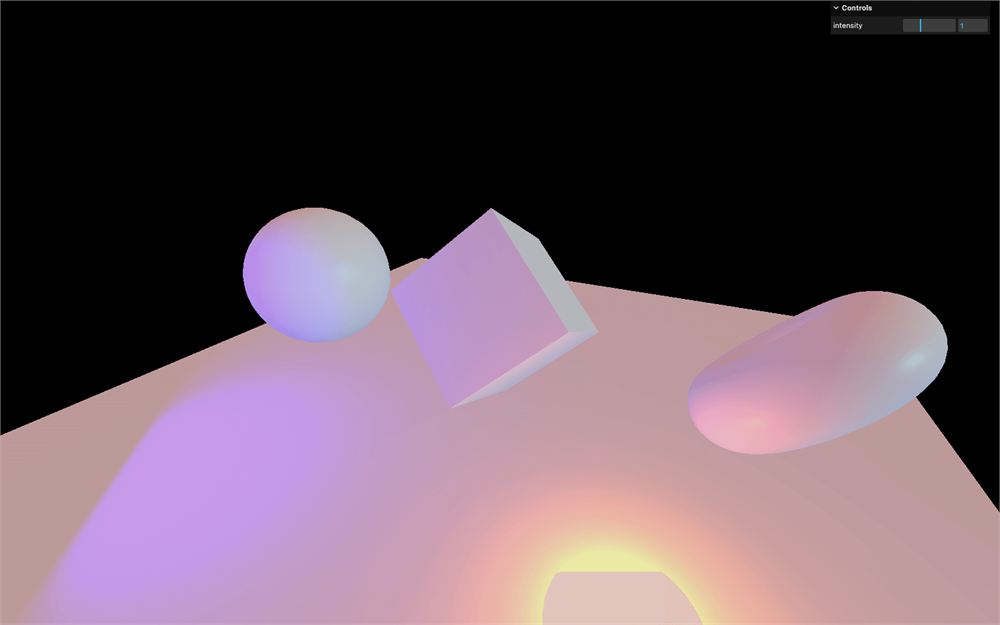
不带任何参数的 Vector3,它的 x、y、z 都会是 0(场景的中心)。
SpotLight
SpotLight 的工作方式就像手电筒。它是一束从一个点开始、并朝某个方向发出的锥形光。以下是它的参数列表:
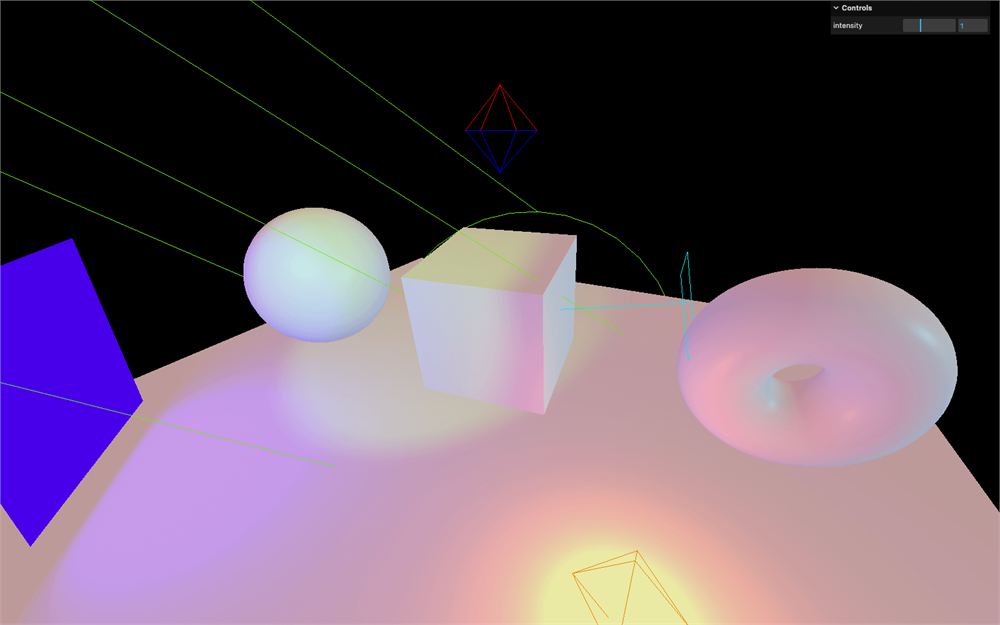
color:颜色intensity:强度distance:强度降到0的距离angle:光束有多大penumbra:光束轮廓的虚化程度decay:光变暗的速度
// Spot light
const spotLight = new THREE.SpotLight(0x78ff00, 4.5, 10, Math.PI * 0.1, 0.25, 1)
spotLight.position.set(0, 2, 3)
scene.add(spotLight)
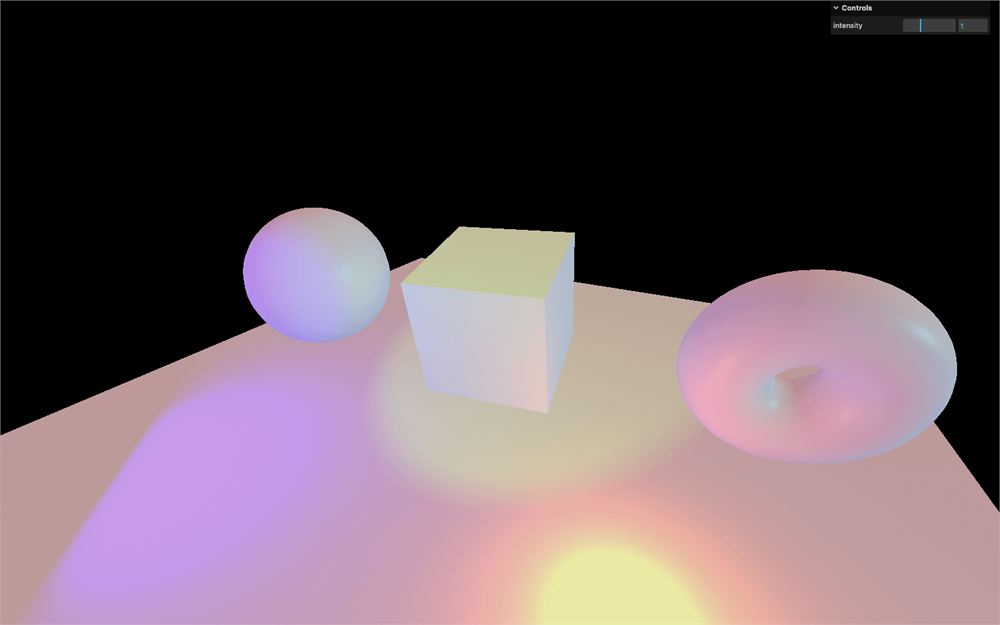
旋转我们的 SpotLight 要稍微麻烦一点。实例有一个名为 target 的属性,它是一个 Object3D。SpotLight 始终看向那个 target 物体。但如果你尝试改变它的 position,SpotLight 是不会动的:
spotLight.target.position.x = - 0.75
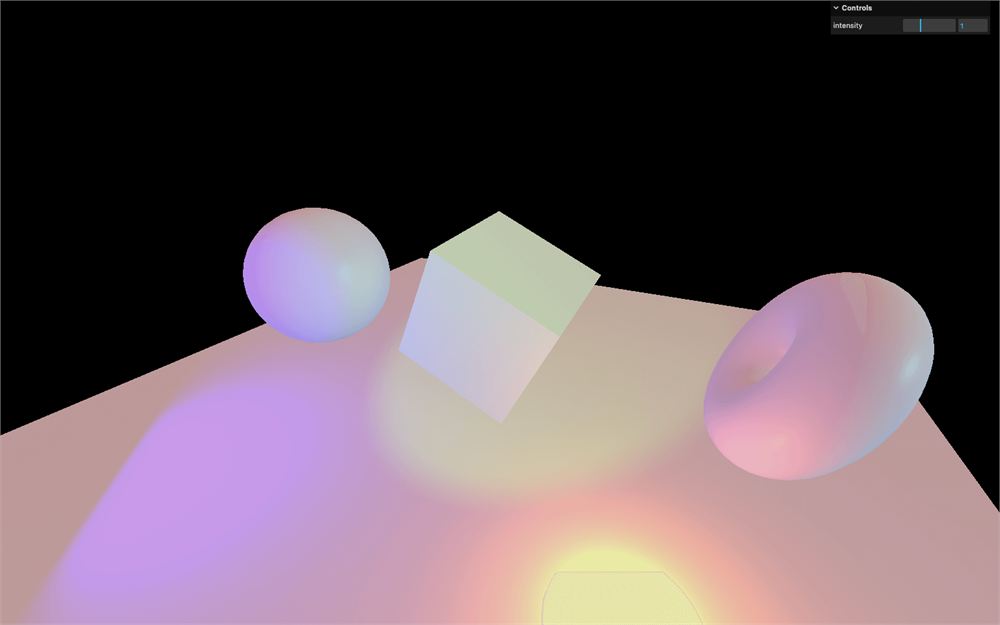
这是 Three.js 里一个奇怪但有道理的行为。
position,连同 rotation 和 scale,会被编译成我们所说的变换矩阵(transform matrix)。这个变换矩阵才是最终真正重要的东西。听起来复杂吗?幸运的是,我们不用处理这个,Three.js 会替我们做。但 Three.js 只对场景中的物体做这件事。为什么要去管那些根本不在场景里的物体呢?
这就是为什么我们需要把这个 spotLight.target 添加到场景中,哪怕它是一个空物体:
scene.add(spotLight.target)
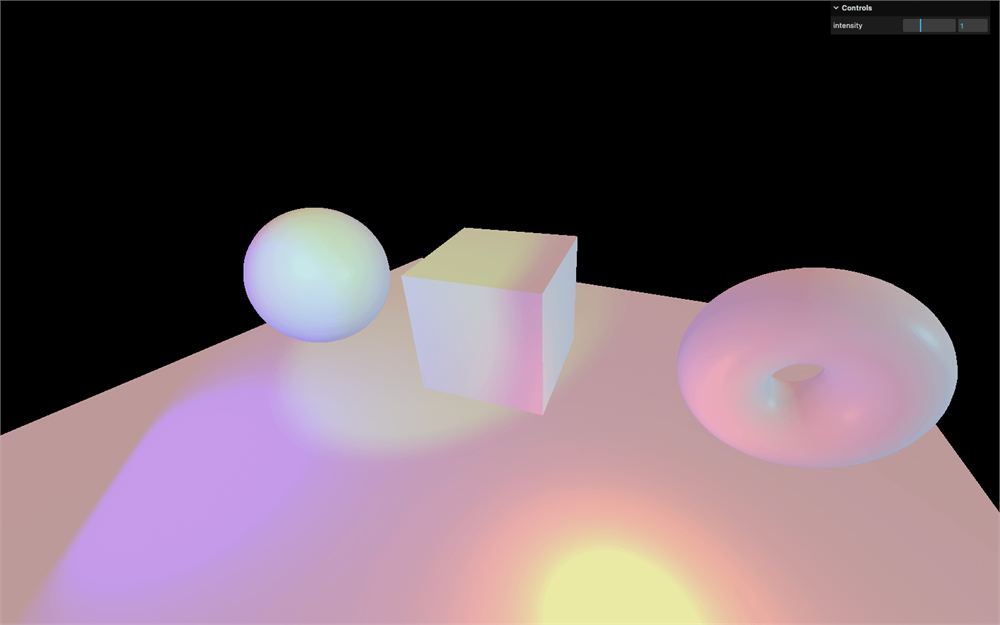
现在灯光已经转向左边了。
性能
灯光很棒,如果使用得当可以很真实。问题是灯光在性能方面可能开销很大。GPU 不得不做很多计算,比如面到灯光的距离、该面朝向灯光的程度、该面是否在聚光灯锥内等等。
尽量加尽可能少的灯光,尽量使用开销更小的灯光。
开销最小:
- AmbientLight
- HemisphereLight
开销中等:
- DirectionalLight
- PointLight
开销较高:
- SpotLight
- RectAreaLight
烘焙
一种很好的照明技术叫做烘焙(baking)。其思路是把光照烘焙进纹理里。这可以在 3D 软件里完成。缺点是一旦光照被烘焙好了,我们就没法移动灯光了,因为根本没有灯光,而且你很可能需要大量纹理。
一个很好的例子是 Three.js Journey 的首页
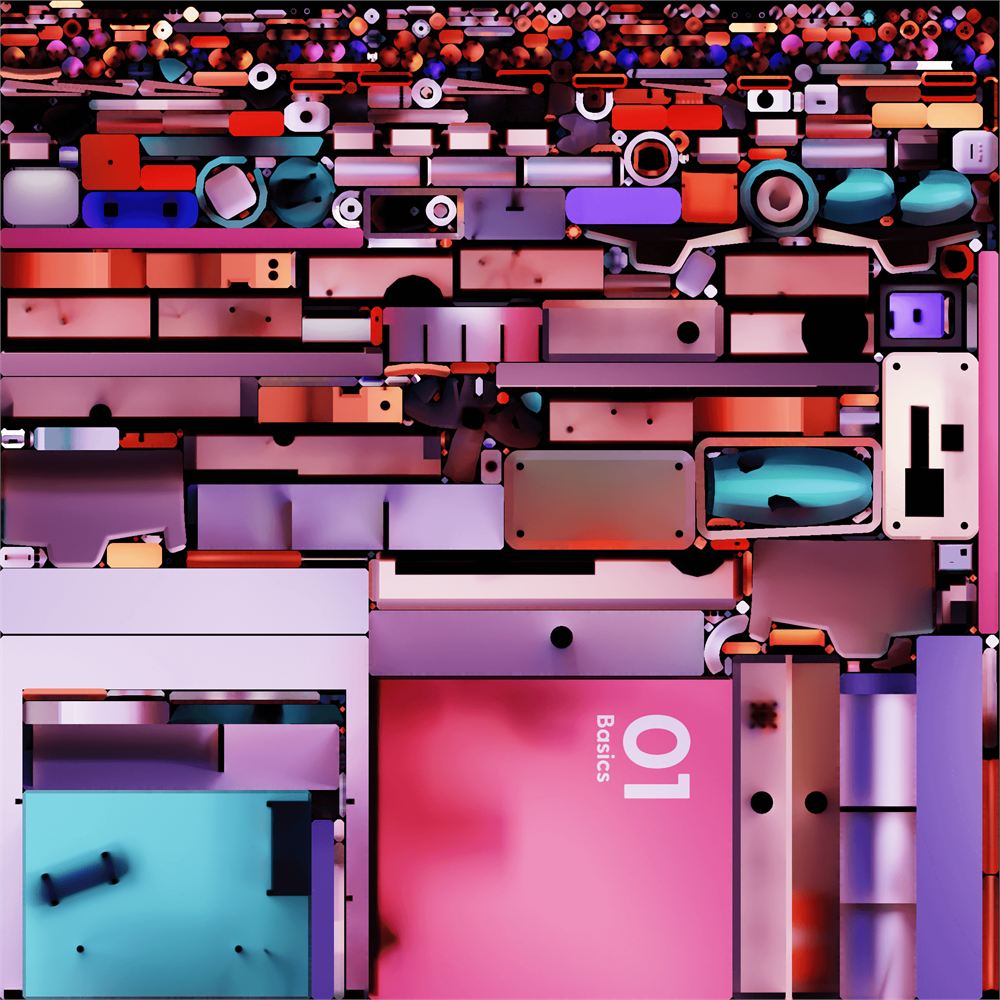
好消息是,你会在Portal章节学到如何烘焙场景。
辅助器
定位和定向灯光很难。为了帮助我们,我们可以使用辅助器(helper)。只支持下面这些辅助器:
要使用它们,只需实例化这些类。把对应的灯光作为参数传入,并把它们添加到场景中。第二个参数让你改变辅助器的 size:
const hemisphereLightHelper = new THREE.HemisphereLightHelper(hemisphereLight, 0.2)
scene.add(hemisphereLightHelper)

const directionalLightHelper = new THREE.DirectionalLightHelper(directionalLight, 0.2)
scene.add(directionalLightHelper)

const pointLightHelper = new THREE.PointLightHelper(pointLight, 0.2)
scene.add(pointLightHelper)

const spotLightHelper = new THREE.SpotLightHelper(spotLight)
scene.add(spotLightHelper)
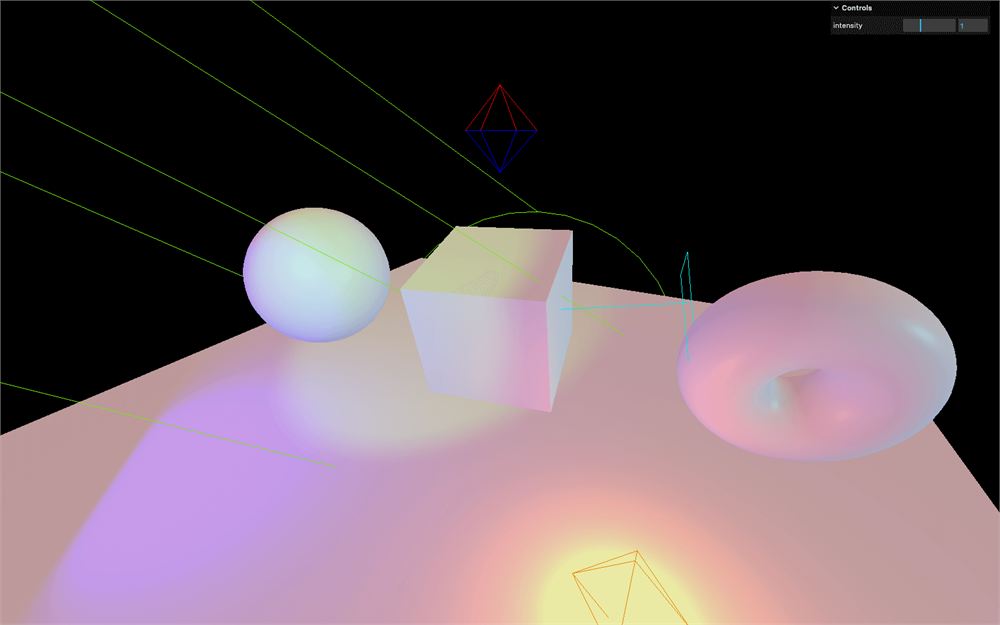
RectAreaLightHelper 用起来稍微麻烦一点。目前,这个类不是 THREE 核心变量的一部分。你必须像我们导入 OrbitControls 那样从 examples 依赖里导入它:
import { RectAreaLightHelper } from 'three/examples/jsm/helpers/RectAreaLightHelper.js'然后你就可以使用它了:
const rectAreaLightHelper = new RectAreaLightHelper(rectAreaLight)
scene.add(rectAreaLightHelper)